Productivity · 8 min read
How to edit text in a PDF on Mac without rebuilding the page
You can change existing PDF text without covering it with a white box or recreating the page. Here is a practical way to make the edit, check the result, and keep the document private.
Key takeaways
- Use an editor that changes the existing text object instead of drawing a patch over the page.
- Check whether the page contains real text or is only a scanned image before you start.
- Review the edited line, save a separate copy when the original matters, and reopen the saved PDF before sharing it.
The short answer
Open the PDF in a native editor, choose its text tool, select the words that are already on the page, make the change, and save a copy. The important detail is the word existing: an editor that only places a new text box over the old words is not making the same kind of edit.
Pandaedits edits locally on the Mac and iPhone. That means the PDF does not need to be uploaded to a browser service just to change a sentence, a date, or a number.
First, check what kind of PDF you have
Not every PDF that looks like text contains editable text. A document exported from a word processor usually has text objects that a PDF editor can select. A scanned contract may be a collection of page images, even if an invisible OCR layer lets you search it.
Try selecting a word with the text tool. If the selection follows individual characters, the page likely contains real text. If the whole page behaves like one image, the text is not available as editable content. Do not silently replace a scanned page's invisible layer: that can make the document say something different from what it visibly shows.
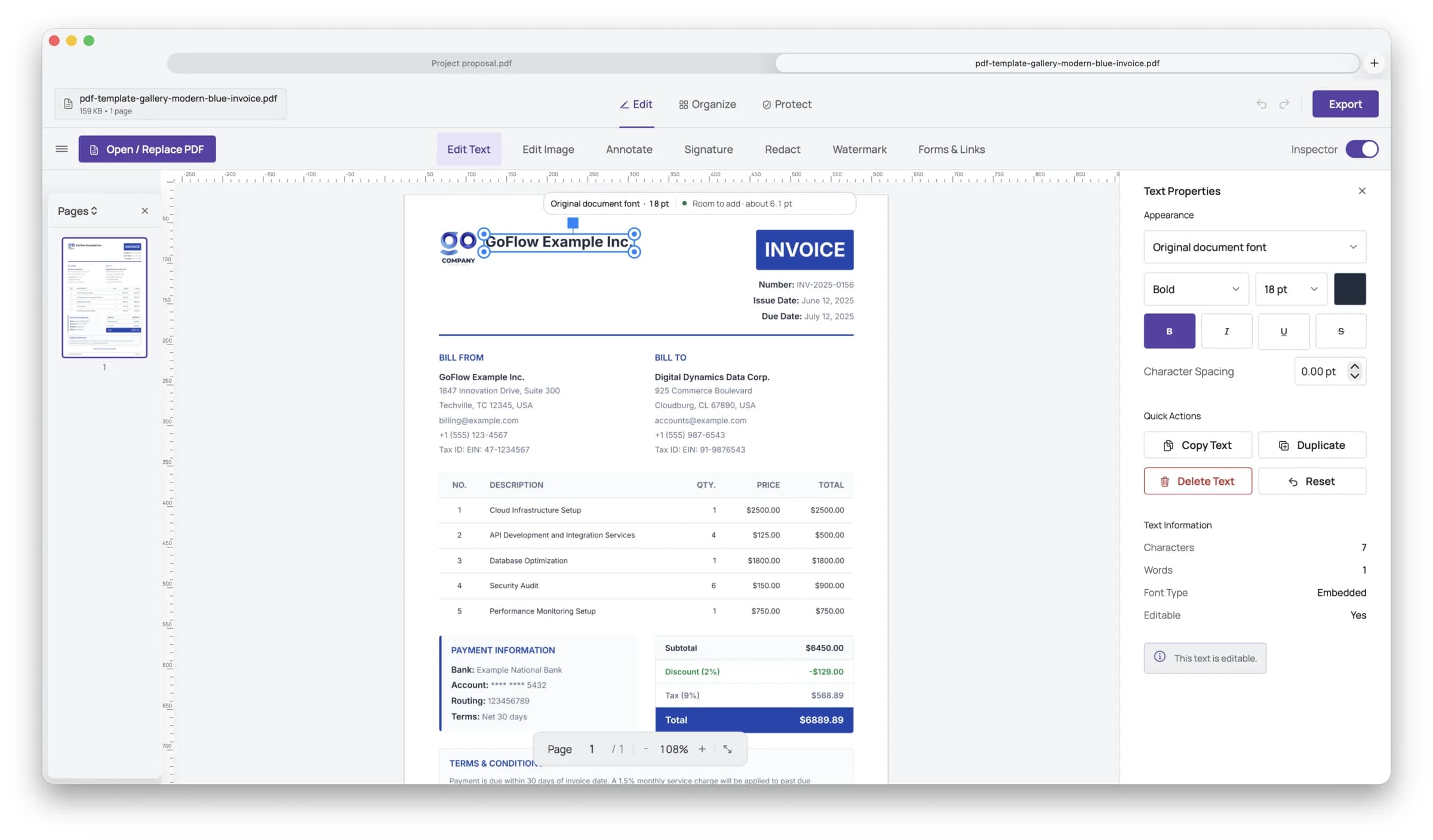 Pandaedits for Mac showing a PDF with text selected for editing
A reliable editing workflow on Mac
- Open the original PDF and keep it available as your reference.
- Select the Text tool, then click the sentence or text block you need to change.
- Replace only the words that need changing. Preserve the existing punctuation and spacing when they carry meaning.
- Check the edited line at normal reading size and at a closer zoom. Look for a changed font, shifted baseline, clipped characters, or a line that now overlaps nearby content.
- Save a copy with a clear filename, then reopen that saved copy before sending it.
Why white boxes and new text boxes are risky
The fastest-looking workaround is often to cover the old words with a white rectangle and type new words on top. It can look acceptable on a white page, but it leaves the original text in the document and can fail when the page has a different background, when someone selects the text, or when the PDF is printed.
A new text box also has its own font metrics, baseline, and spacing. Even a small difference can make a corrected line look pasted onto the page. Structural editing is preferable when the document supports it because the change belongs to the content rather than sitting above it.
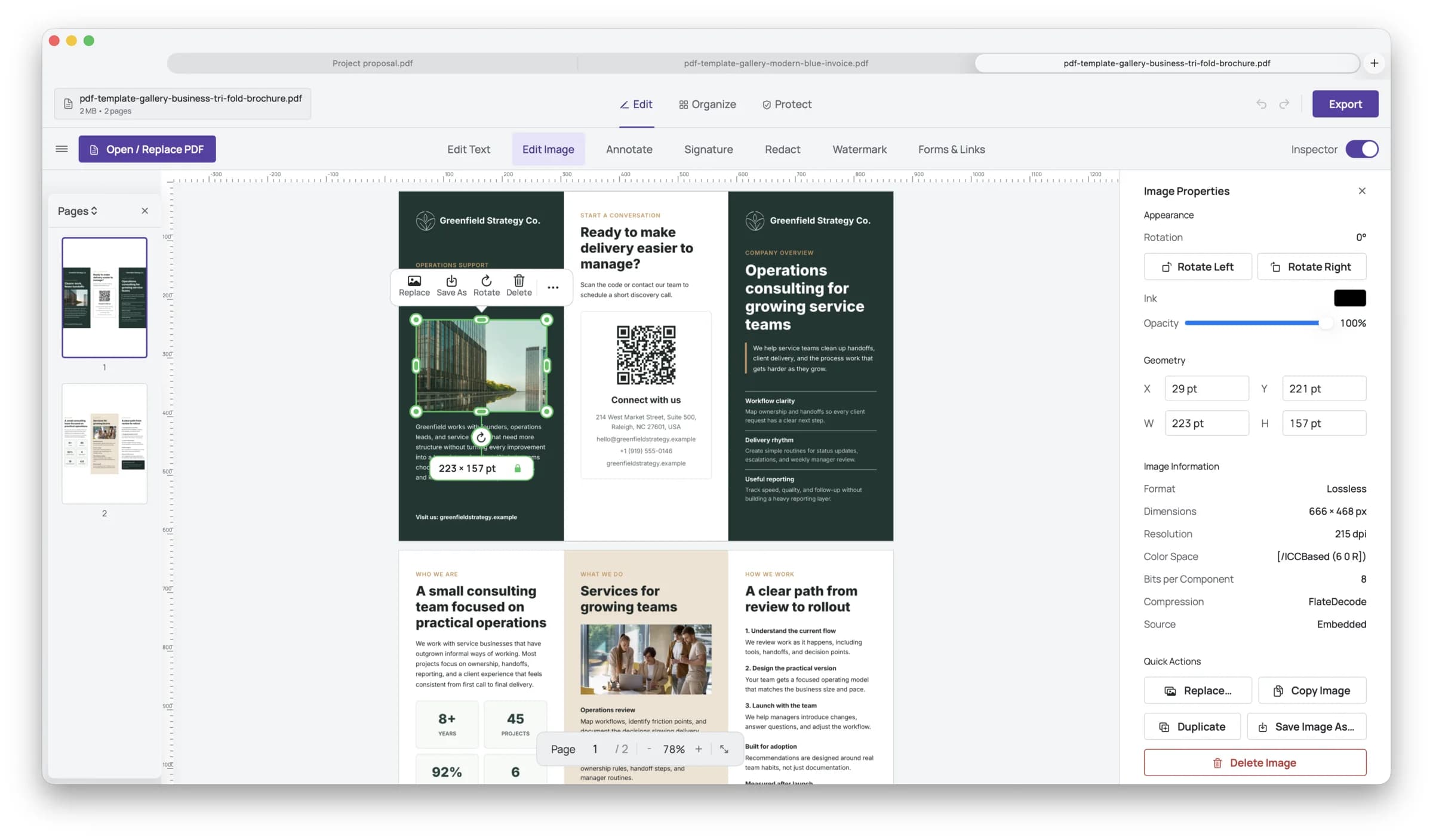 Pandaedits document workspace with editing tools visible around the page
When a good editor should refuse the edit
A faithful tool should not guess when the page is a scan, the text is not represented safely, or the requested change would make the result misleading. Refusal is useful when it explains what prevented the edit and leaves the original untouched.
For a scanned page, use an OCR workflow only when you are prepared to verify every result. OCR can misread a zero as an O, drop a decimal point, or confuse a name. For contracts, financial documents, and forms, visual verification is not optional.
The final review checklist
Before sharing the edited PDF, confirm the new wording, date, amount, and names. Compare the changed line with the surrounding font and alignment. Search for the old wording if it should no longer exist. Inspect the saved copy rather than only the editor's working view.
If the document contains confidential information, make the edit on a device you control and avoid creating unnecessary uploaded copies. If information must be removed rather than changed, use a real redaction workflow and verify that the content is gone.
Mac and iPhone, one document model
A document often starts on the Mac and finishes on the iPhone: a client sends a correction while you are away from your desk, or you need to sign and return a file during a meeting. A consistent editor should preserve the same principles on both devices: edit the document itself, save clearly, and keep the file local.
Frequently asked questions
Can I edit existing text in a PDF on Mac?
Yes, when the PDF contains selectable text. Open it in a structural PDF editor, select the existing text, replace it, review the layout, and save a copy. A scanned page may require OCR instead and should be checked carefully.
Why can I select text but not edit it?
Some PDFs contain an invisible text layer for search while the visible page is an image. Other files may use text that cannot be safely rewritten. A trustworthy editor should explain the limitation instead of silently placing a patch over the page.
Is editing a PDF online private?
It depends on the service's upload, retention, and processing practices. If the document is sensitive, a local editor avoids sending the PDF to a third-party server for the edit.
Keep working locally
Edit the PDF you already have.
Pandaedits edits, signs, fills, redacts, and reviews PDFs on Mac and iPhone without uploading the document.